PC Store Together Controls Guide
Keyboard, mouse, and Full Controller Support for the shop floor and the workbench.
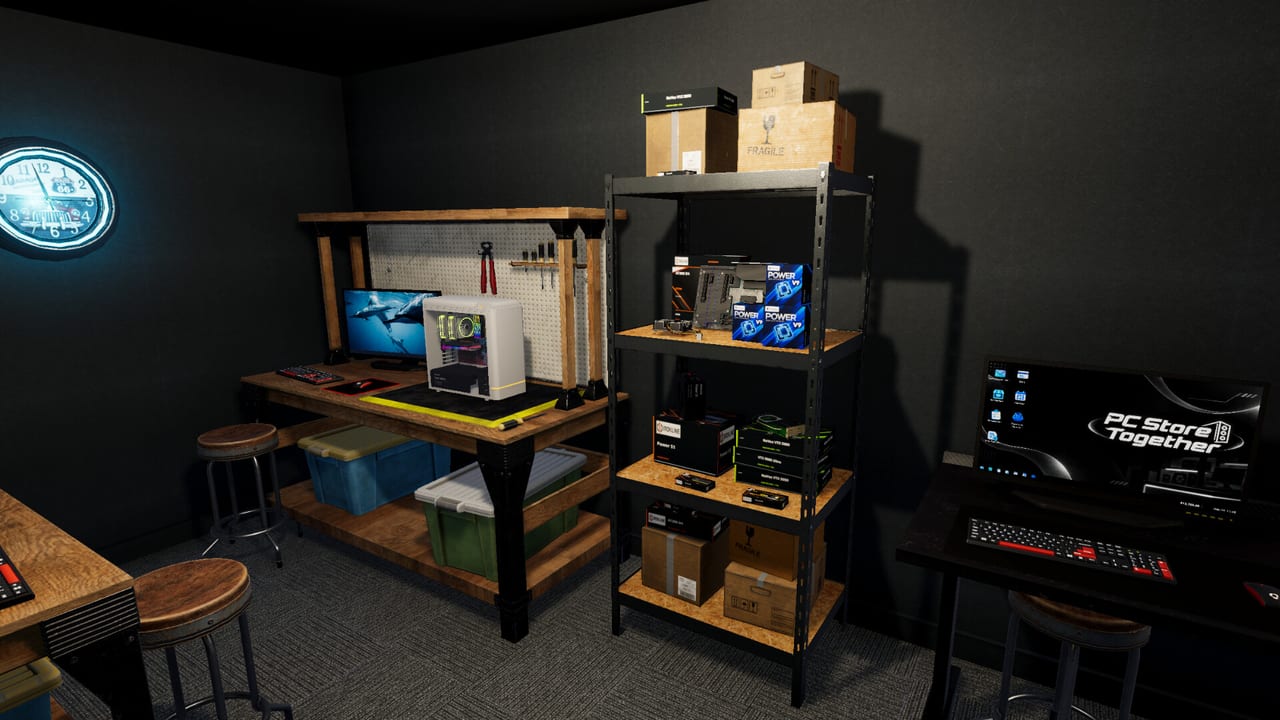
PC Store Together is a first-person PC shop sim on Steam (app 4990940, Windows only) from Sykes Games and Nightmare Studios. You walk the floor, stock shelves, work the register, expand the store, and assemble or repair machines part by part—solo or in 1–4 player online co-op. Comfortable input is not a side topic; it is how you keep throughput high when queues spike.
This guide explains how to think about keyboard and mouse, Full Controller Support (including DualShock on the Steam page), remapping, sensitivity, shop-floor versus workbench context, and co-op bind hygiene. Exact default keys can change with patches, so treat Options → Controls as the source of truth—do not memorize a wiki table that may go stale. Day-one systems live in Getting Started; co-op habits deepen in How to Co-op and Co-op Roles.
What you need to do (actions, not keys)
Before chasing key labels, name the actions you use every shift:
- Move around the shop floor between shelves, register, and benches
- Look / aim the camera so you can read part labels and customer prompts
- Interact with counters, shelves, doors, UI prompts, and customers
- Grab / pick up parts, tools, or finished towers when the prompt appears
- Place / seat components into a case or drop stock onto shelves
- Open menus for inventory, shop management, pause, and settings
- Pause / cancel when a mis-click would trash a half-built board
On keyboard and mouse, expect a familiar first-person loop: WASD-style movement, mouse look, and dedicated interact / grab / place binds. Confirm every binding in Options → Controls after install and after major patches. If something feels “wrong,” remap before you blame the build order in How to Build PCs.
Shop floor vs workbench
The same character uses two different precision budgets.
Shop floor favors speed: walking aisles, restocking shelves, ringing the register, greeting walk-ins, and ferrying parts between storage and benches. Movement and interact matter more than pixel-perfect aim. Keep look sensitivity high enough that turning from shelf to counter does not feel like swimming through syrup.
Workbench favors precision: seating a CPU, choosing RAM slots, aligning a GPU, seating PSU cables, closing a panel, and powering on. Grab and place must feel deliberate. Many players drop mouse sensitivity a notch for bench work, or switch to a controller stick curve that favors fine placement. Repair tickets from How to Repair use the same careful hands—diagnose before you yank the expensive part.
If one bind set tries to optimize both contexts and fails, remap the actions you mash at the bench (grab, place, interact, cancel) first. Floor movement can stay “fast default.” Store layout and expansion planning still belong in Store Management; controls only make those systems reachable without rage.
Full Controller Support
The Steam store page lists Full Controller Support for PC Store Together, with DualShock support called out alongside standard gamepad play. That means you should be able to navigate menus, walk the floor, and complete shop actions without reaching for a mouse—once your pad is recognized.
Practical checklist:
- Connect the pad before launch when possible (wired USB is the least dramatic path).
- Confirm Steam Input sees the device, then launch the game.
- Open Options → Controls and verify face buttons, sticks, and triggers map to move, look, interact, grab, place, menus, and pause.
- Test one full loop: pick a part from a shelf, carry it to a bench, seat it, open a menu, pause, resume.
DualShock / PlayStation pads often work best when Steam Input is enabled for the title. If glyphs look wrong or a stick feels inverted, fix it in the in-game remapper or Steam’s per-game controller layout before inventing a “broken game” theory. Xbox-layout pads are usually the path of least resistance on Windows, but Full Controller Support exists so you are not locked to one brand.
Remapping and sensitivity
Treat remapping as part of opening the shop, not a last resort.
- Rebind any action that fights muscle memory from other first-person sims.
- Separate look sensitivity from movement speed in your head: high look speed helps floor turns; lower look speed helps seating tiny parts.
- Prefer binds you can hit without looking away from the case—especially cancel / back, so a wrong place does not cascade.
- After remapping, run a thirty-second drill: shelf → bench → place → menu → pause. If any step needs a second guess, keep editing.
Co-op crews should agree on a shared philosophy even if individual binds differ. One player on an inverted Y-axis and another on default is fine; what is not fine is someone who cannot open the pause menu mid-handoff. Everyone needs comfortable binds before you invite a full four-player shift.
Co-op input tips
Online co-op supports 1–4 players from minute one. Input chaos scales with player count:
- Hosts should confirm their own binds before friends join so troubleshooting starts from a known-good profile.
- Call out when you are grabbing the same open case so two people do not fight place actions.
- Register players need fast interact; builders need precise grab/place—role-specific remaps are allowed.
- If someone is on controller and someone is on mouse, keep voice clear: “handing GPU,” “seating RAM,” “do not power yet.”
Role splits and etiquette are covered in Co-op Roles and How to Co-op. Pair those pages with the Build Checklist so remapped hands still follow the same install gates.
Steam Deck and handheld notes
PC Store Together is a Windows Steam title. Steam Deck play means Proton / compatibility layers rather than a native Deck Verified promise on this wiki. If you try handheld:
- Expect to lean on Steam Input and community layouts more than desktop defaults.
- Use the Deck’s controls as a Full Controller Support path; verify every critical action in-game.
- Docked mouse-and-keyboard can still be the precision choice for dense bench work.
- Performance hitching on any Windows host—Deck-as-client or desktop—may respond to launch options discussed with the performance update. Community notes often mention trying
-force-d3d11when hitching persists after the Major Optimization pass; see Performance Update and the Updates hub before you rewrite your entire bind set.
Always re-test controls after a client update. Launch-week hotfixes and the performance work around 24–25 November 2026 changed how the shop feels under load; sticky input can be a frame-time problem, not a wrong key.
First-session control drill
- Open Options → Controls and screenshot or note your binds.
- Remap anything that feels awkward for interact, grab, place, and pause.
- Walk the floor once: shelves, register, expansion area awareness.
- Complete one clean bench cycle using the order from How to Build PCs.
- Run one diagnose-first repair habit from How to Repair without fat-finger swaps.
- Invite a friend only after both of you can pause and hand off parts without hunting keys.
When the controls disappear into muscle memory, the rest of the wiki becomes usable: stocking and pricing in Store Management, overview context on Wiki, outbound Steam/Discord destinations on Links, and patch tracking under Updates.
Comfortable binds will not fix a wrong socket—but wrong binds will make every correct build feel twice as hard. Set the inputs, then open the shop.
Frequently Asked Questions
Quick answers for shop owners and co-op crews.
Where do I remap controls in PC Store Together?
Open Options → Controls (or the equivalent settings panel) and rebind actions there. Exact default keys can change with patches, so always confirm in-game instead of trusting an outdated chart.
Does PC Store Together support controllers?
Yes. The Steam page lists Full Controller Support, including DualShock support. Connect the pad, verify Steam Input if needed, then confirm move, look, interact, grab, place, menus, and pause in Options → Controls.
Can I play on Steam Deck?
The game is Windows-only on Steam. Deck play relies on Proton and Steam Input. Treat it as a Full Controller Support path, verify every critical action, and consider docked mouse and keyboard for precise bench work.
Why do shop-floor controls feel different from workbench controls?
The floor rewards fast movement and interact spam; the bench rewards precise grab and place. Many players tune sensitivity or remaps for bench precision while keeping floor movement snappy.
What should co-op crews do about keybinds?
Everyone needs comfortable personal binds before a four-player shift. Agree on callouts when sharing a case, and make sure each player can pause and cancel quickly. See How to Co-op and Co-op Roles for role splits.